For Video check: http://www.youtube.com/watch?v=xqJmWqnddeU
1. First download and install VLC Media Player from here : http://www.videolan.org/
2. Then open your rotated video in VLC media player.
follow the steps:
3. In the VLC Media Player main menu go "Tools" > "Effects and Filters"

4. In "Adjustments and Effects" window, choose the "Video Effects" tab

5. In "Video Effects" tab, choose "Geometry"

6. In "Geometry" click the "Transform" box to enable transform and make sure that the "Rotate by 90 degrees" setting below is selected. Then choose "Close" to close the window. Notice*: The "Rotate by 90 degrees" setting, rotates your video by 90 degrees clockwise. If you want to rotate your video in a different angle then choose the corresponding angle.

Now you can view and play your rotated video with VLC Media player (only) in the right angle

7. If you like to save your recent rotated video, from the main menu go to "Tools" > "Preferences"

8. In Interface Settings look at the left side's bottom and choose to "Show All Settings"

9. At the left pane under "Stream Output" expand "Sout stream" >"Transcode" and at right pane under "Video filter" choose the "Video transformation filter". Then click "Save" to save your settings.

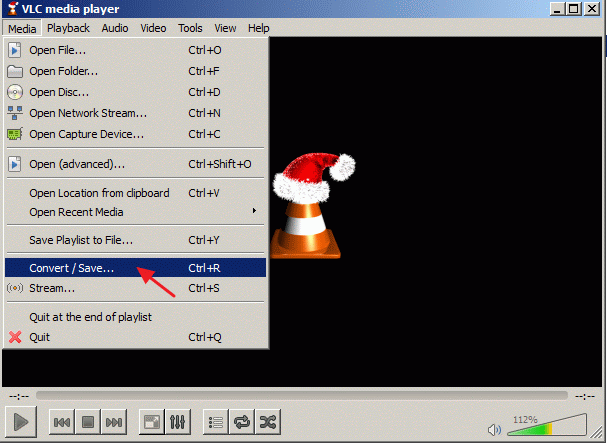
10. From the main menu choose "Media" > "Convert / Save"

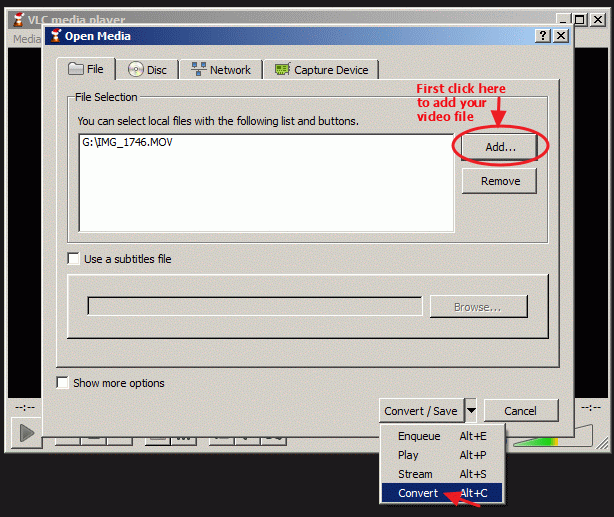
11. At "Convert/Save" options at "File" tab, choose "Add…" to add your recently rotated video file and then press the drop-down arrow on the right of "Convert / Save" button to choose "Convert"
12. At "convert" options, choose "Browse", select the destination folder (e.g. "Desktop"), give a file name for the converted file (e.g. "IMG_1822Rotated") and specify the output video file type (e.g. ".MOV")

13. While in "convert" options, choose your profile output: "Video – H.264 + MP3 (MP4)" and then press the "Tools" button on the right side to edit the selected profile.

14. In profile settings, find and click the "Audio codec" tab

15. Inside "Audio codec" settings use the drop-down arrow in codec's line and from the list of codecs choose "MP3". Then click Save.

16. In "Convert" window press "Start" to start the conversion.

17.As "Conversion/Streaming" process is executed, you see the following screen.

18. When the "Conversion/Streaming" process is completed, you can play your video in any media player you like.
Attention: After you rotate and save your videos, you must reset VLC player to it's default settings , by going to: "Tools" > "Preferences" and press the "Reset Preferences" button at the bottom side of Preferences window.

No comments:
Post a Comment